Welcome to LO Classic
Getting Started
Server name: LO Classic S3
Please note, client side mods are required to be installed in order to play Last Oasis Classic,
this allows more modification to be made to the game like new assets, recipes, and weapon speeds.
If you're having trouble with modding the client follow the guide for troubleshooting the modding process that can be found below.
Step 1. Installing LO Classic
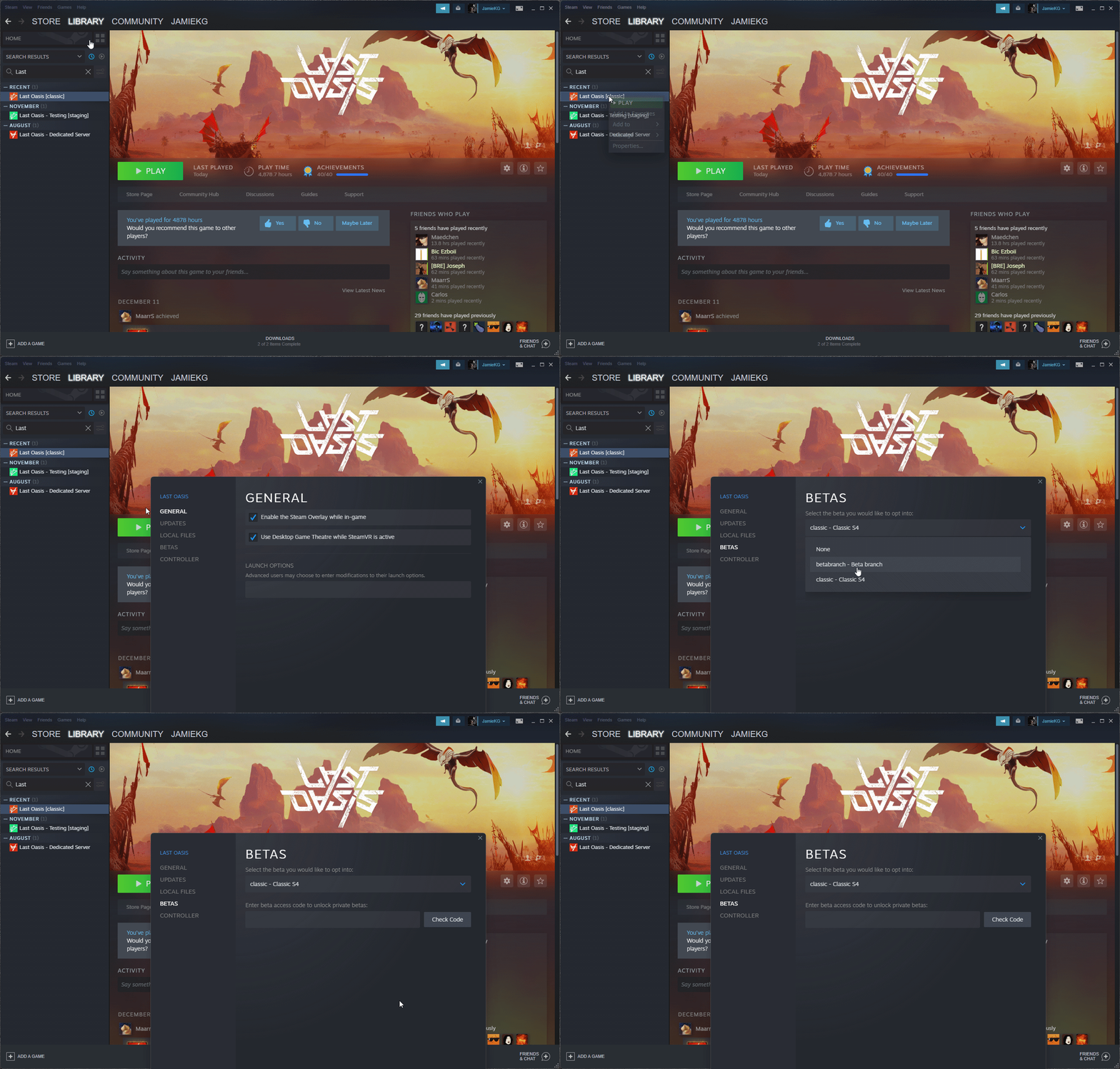
Be sure to install the S4 version of Last Oasis and wait for it to finish updating before Step 2.
Here's a video showing how to swap version of Last Oasis to the S4 branch
Step 2.
Install the Autopatcher to put the required mods on your client and keep them up to date.
You can download the Autopatcher from here: -> Autopatcher <-
If the download is marked as failed you need to navigate to your antivirus and either turn it off while updating LO Classic or whitelist the Autopatcher for download and execution.
You can also send feedback through your anti-virus indicating that this is a false positive,
but it takes time for vendors to update their list of malicious programs and it's not guaranteed to end up unblocked.
For more details on how to fix problems with the auto patcher being blockd by antivirus, find the part of this guide marked "troubleshooting installation".
Here's a video on how to place the auto patcher files into the proper directory :
(You may have more files with the new version of the auto patcher, simply copy the entire contents of the OasisLauncher.zip folder into your
C:\Program Files (x86)\Steam\steamapps\common\Last Oasis folder)
Troubleshooting installation
If you have already modded your LO Client to use LO Classic but you cannot connect then you need to update your mods.
Simply navigate to the folder that contains your LO installation (this can be found at C:\Program Files (x86)\Steam\steamapps\common\Last Oasis).
Once here open up OasisLauncher.exe and select clear mods and then update client this will bring your client up to date with the server and allow you to join.
If you cannot open the auto patcher or it reports a network error you need to follow the next steps to fix your auto patcher installation.
Troubleshooting autopatcher :
If you are having trouble with the Autopatcher and your antivirus the first step is to make sure that you are downloading the entire auto patcher zip file.
If you are getting a failed to download - virus detected message you need to disable your antivirus or allow the files.
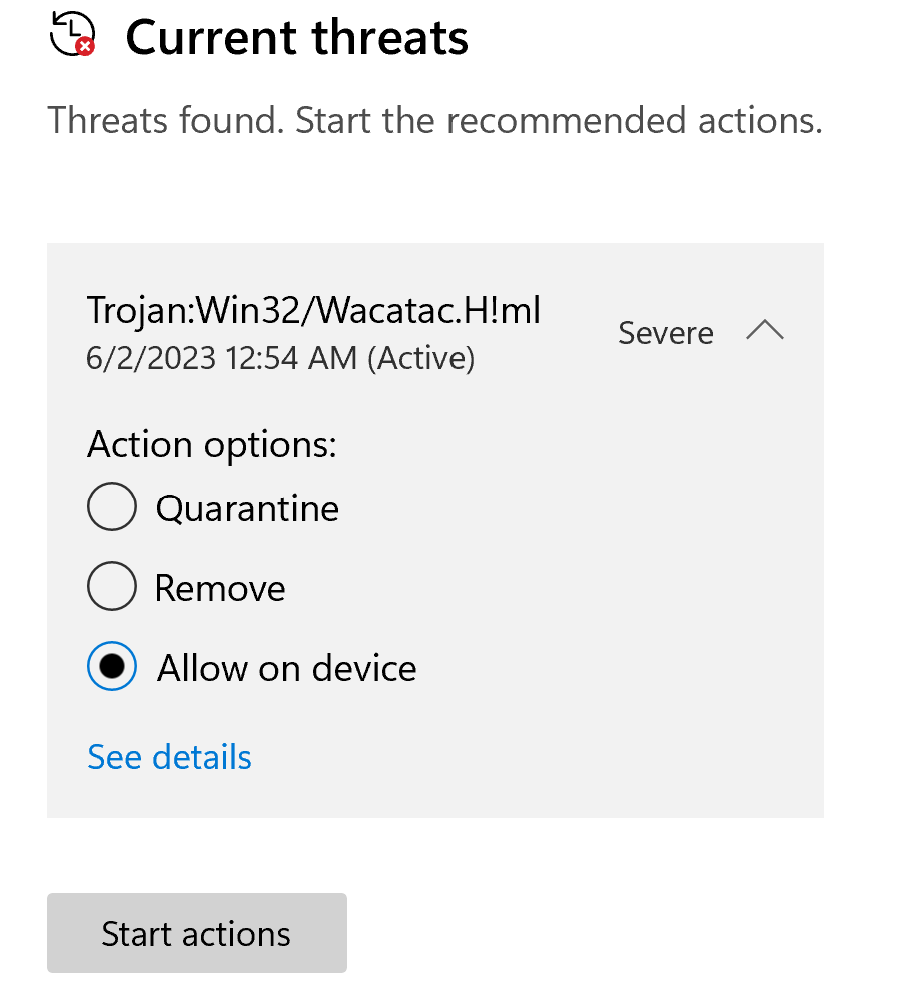
If you click on the windows defender notification that pops up you can allow the part of the auto patcher that is blocked like this.
For other AV software you will need to google either how to allow this program through specifically or turn off your AV solution until you've managed to
download the auto patcher and update then launch the modded client.
Troubleshooting DNS server problems :
If you have turned off your AV solution or allowed the auto patcher to execute and the patcher still cannot connect or you cannot connect to the server with
up to date mods you may need to change your DNS server specification.
Check also this -> https://developers.google.com/speed/public-dns/docs/using
Navigate to your network and internet settings and if you are using an ethernet connection simply update your DNS through this setting
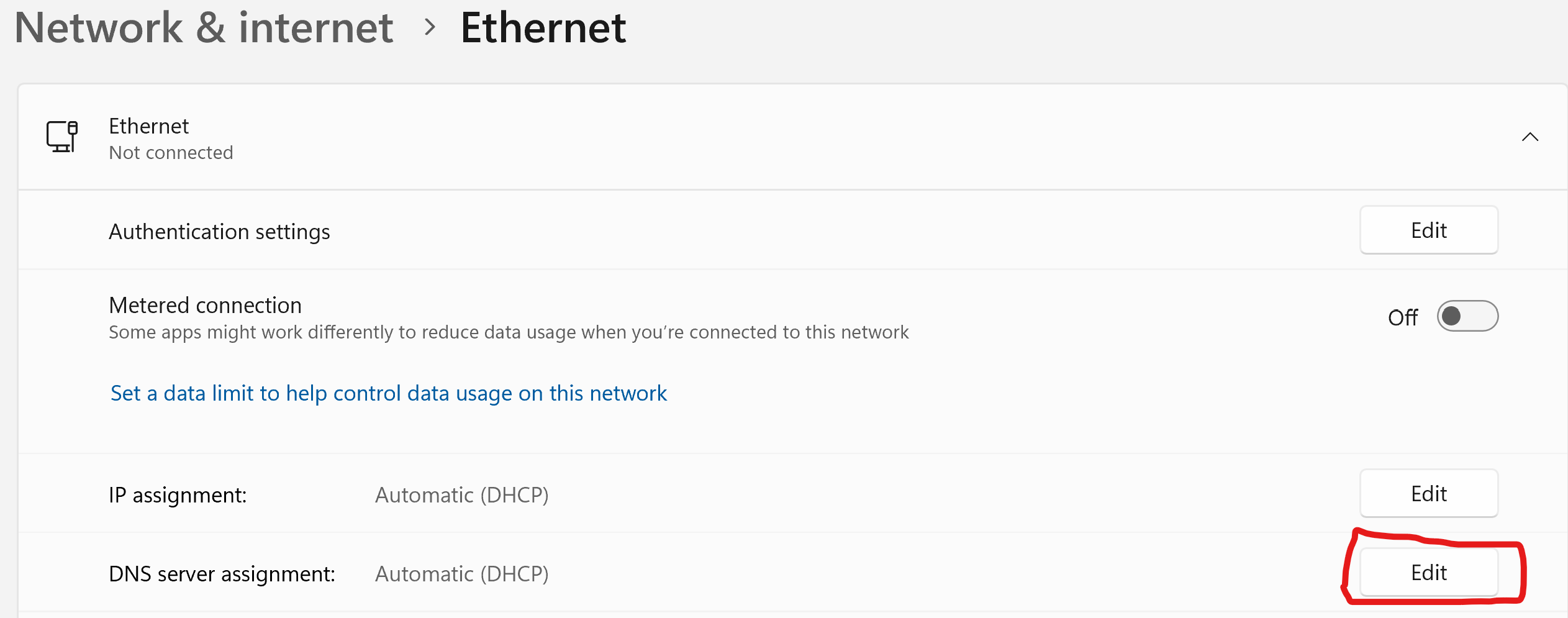
Set your DNS to google public DNS like this
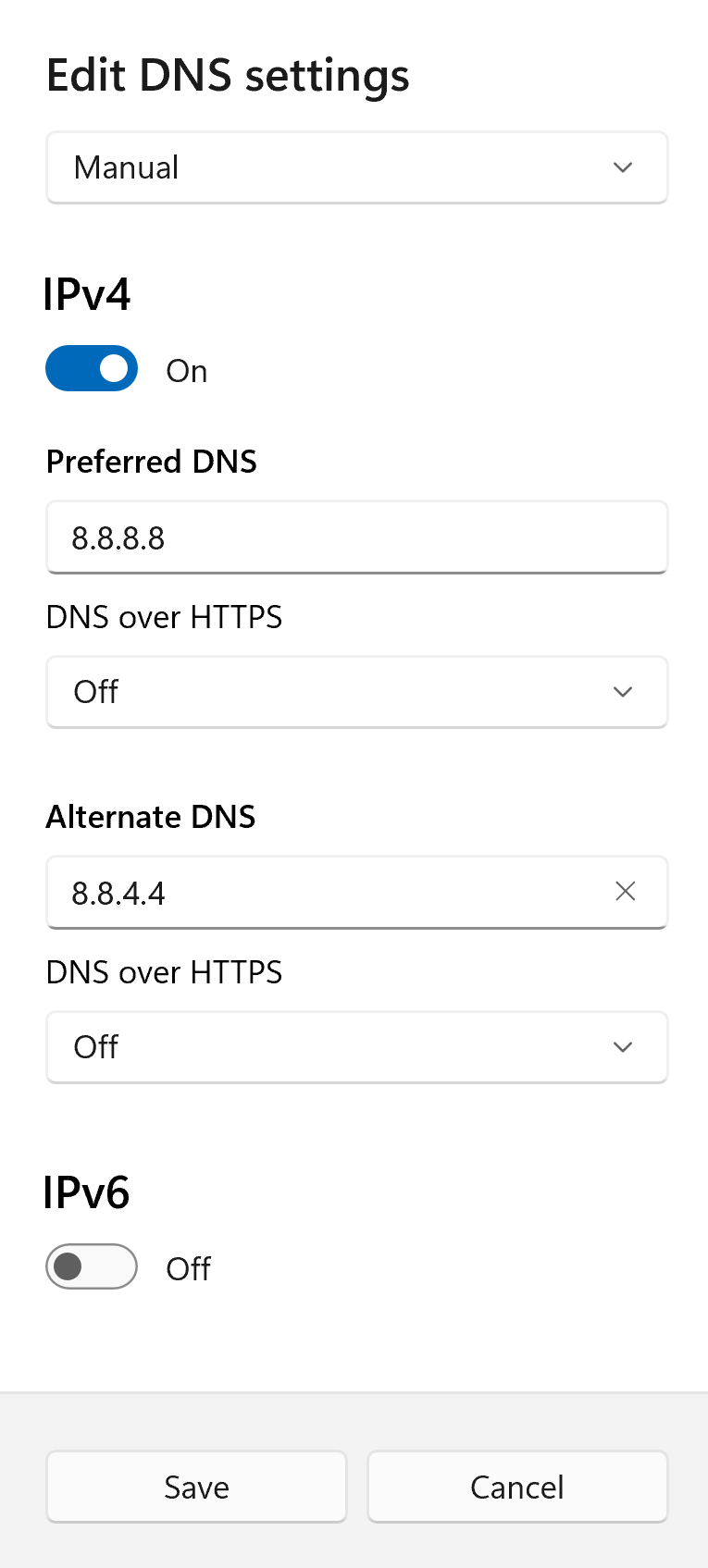
Save the settings and then restart your PC (some versions of windows require this to update the DNS settings)
If you are using wifi you will need to change the DNS settings of your Router. These steps will vary depending on your router model and
you will need to google and follow these steps on your own or upgrade to ethernet as it provides a better connection anyways.
If you have completed all of these steps and still cannot connect then you've made a mistake somewhere in the process.
The most likely issue is with antivirus blocking the auto patcher, you can easily confirm your DNS settings are changed by opening the network settings panel.
If you turn off your antivirus to update LO Classic please turn it back on after updating and launching the game,
if you use an antivirus other than Windows Defender we would appreciate community members sharing with us documentation of how
to allow the auto patcher through their AV solution.
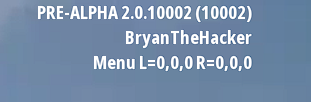
After installing the autopatcher and opening the client, you can easily verify that everything works by checking the game version showed on top right of the screen :
Enable Music